Block specific Notifications in Windows 10 & 11
In a VDI environment there is nothing more irritating for a user than getting the same notifications and popups at every logon, none of which interest them.


In a VDI environment there is, in my opinion, nothing more irritating for a user than getting the same messages and popups at every logon, none of which interest them in the slightest.
There are countless guides for fixing this. Many of them simply recommend turning toast notifications off. That also kills the useful ones, such as the Outlook mail preview notification, so it is not a good answer.
A far more elegant, if slightly more laborious, route is to define exactly which applications may send notifications and which may not. This post does it with DEM. It works the same way with GPOs, since they set the same registry keys.
The starting point
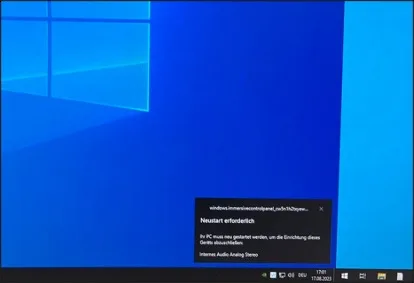
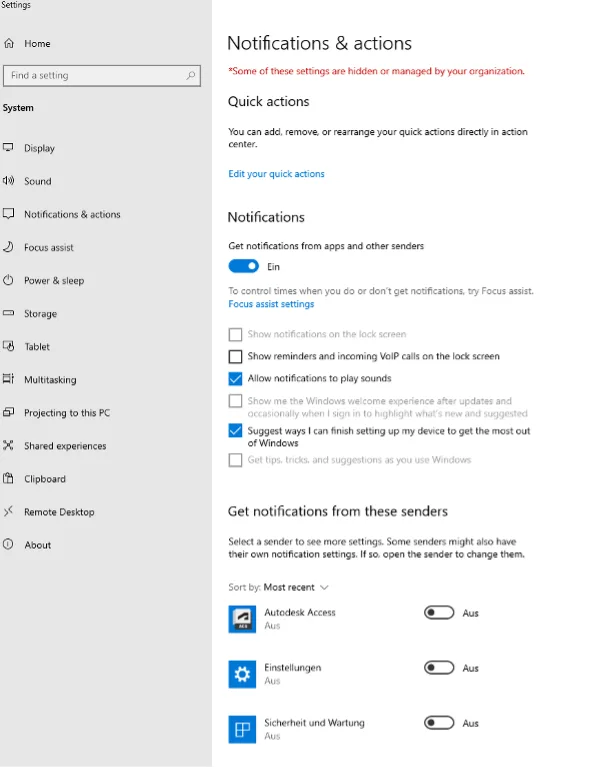
We get several notifications that irritate the end user. The screenshot shows the restart notification. Alongside it, AutoDesk and “System and Maintenance” show notifications daily. Those should be disabled specifically, while other notifications stay allowed.
Implementing the solution
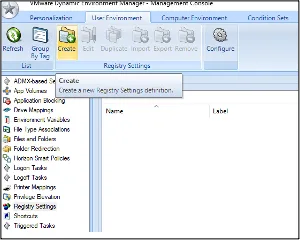
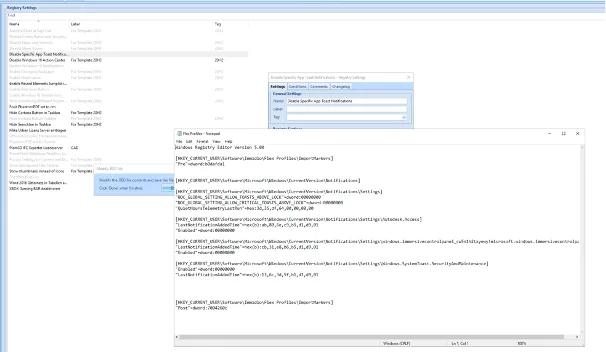
Create a new entry under “Registry Settings”.
Give it a name and click “Edit”.
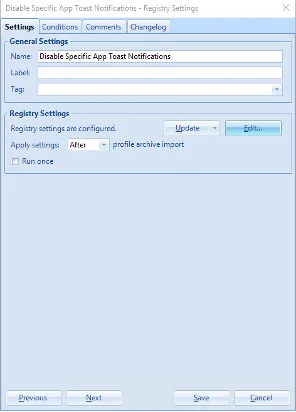
In this example these settings were used:
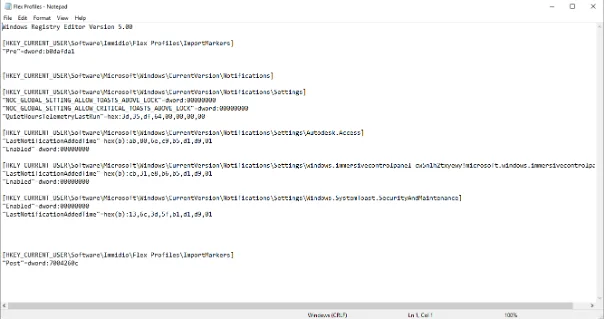
- “Autodesk.Access” (the AutoDesk application)
- “Windows.immersivecontrolpanel” (the daily restart notification)
- “SecurityMaintenance” (a daily notification)
The registry settings then look like this:
And that is the registry configuration done:
After the next logon the settings are active and user satisfaction has gone up.
So in Windows 10 and Windows 11 you can suppress notifications from individual applications, and only those.
Next steps
If this interests you and you want to know more about workspace optimisation, do not hesitate to get in touch.