Tips and Tricks for vSAN troubleshooting
Today I attended a Web-Session from VMware with the topic vSAN troubleshooting tips and tricks and I wanted to share those tips and tricks with you.

This post is from 2017. It stays online because people still look for it, but it describes the products as they were then.
Today I attended a Web-Session from VMware with the topic vSAN troubleshooting tips and tricks and I wanted to share those tips and tricks with you.
Common sense
Ensure that your hardware is on the VMware HCL
– Disks / Controllers / Firmare / Drivers
Ensure that you have up-to-date backups (and test the restore process fully)
vSAN Overview
Cluster: 2-64 physical hosts
Host: 1-5 disk groups
Disk Group: 1 flash for cache, 1-7 flash or HDD devices for capacity
vSAN Objects:
– VM Home, VM Swap, VMDK, Delta Disk, Memory Delta
Storage Policies:
– Applied at per VM level or VMDK level
– Define protection level & performance
Each object is made up of one or more components (depending on your storage policy)
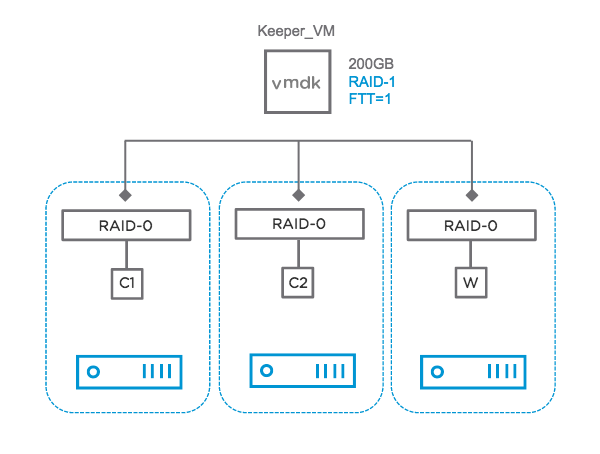
C1 & C2 = Components, W = Witness
Component states:
- Active – component accessible
- Absent – Inaccessible, but no explicit error codes sensed
- host outage or maint mode with “ensure accessibility”
- rebuild begins after 60 minute timeout
- Degraded – Inaccessible with error codes sensed
- device failure
- rebuild begins immediately
- Active – stale
- In queue of objects to rebuild
vSAN Tools
- vRealize Ops / Log Insight
- ESXCLI
- RVC
- Health Check
- vSAN Observer (for performance issues)
ESXCLI
esxcli vsan – gives the available namespaces
New in 6.6: debug & health
esxcli vsan helath cluster list – Gives you an overview with the traffic light system (green, yellow, red) where you see all tests
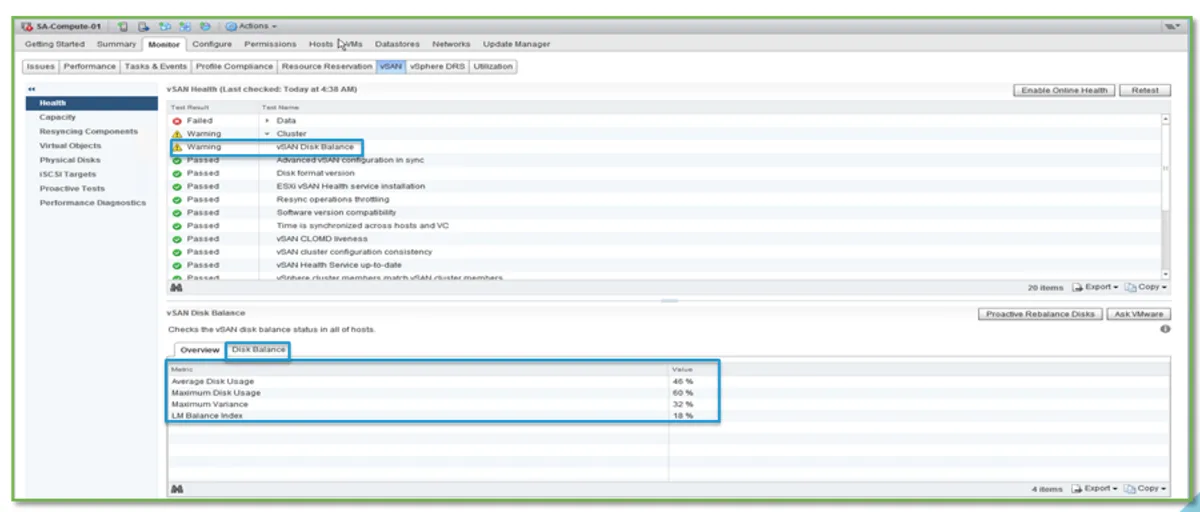
esxcli vsan health cluster get -t “vSAN Disk Balance” – get results of a test from above command
esxcli vsan health cluster get -t “vSAN object health” – vSAN object health could mean serious problems if status is red. (Get UUID of object to track the problem with those objects)
esxcli vsan debug – gives available namespaces
esxcli vsan debug resync summary – give information of current resync process
esxcli vsan debug object health summary get – gives you an overview of your health
esxcli vsan debug object list |more – Gives back all objects back including component states
esxcli vsan debug disk list – gives you information about your disk and if they can keep up
esxcli vsan debug controller list – gives information about your disk controllers (HCL information, Queue depth)
RVC (Ruby vSphere Console)
The RVC is preinstalled on all vCenter Server variants.
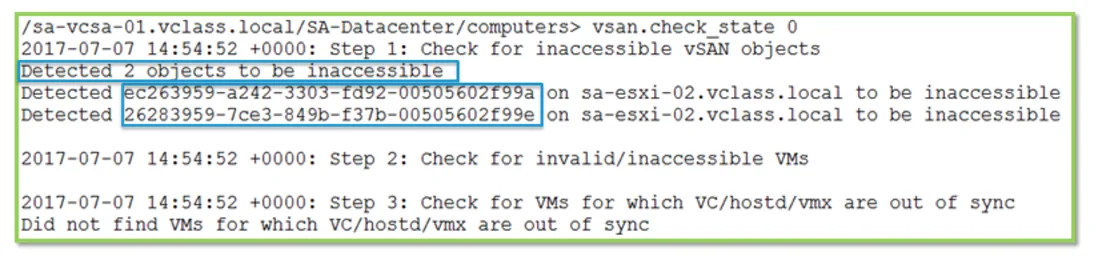
vsan.check_state 0
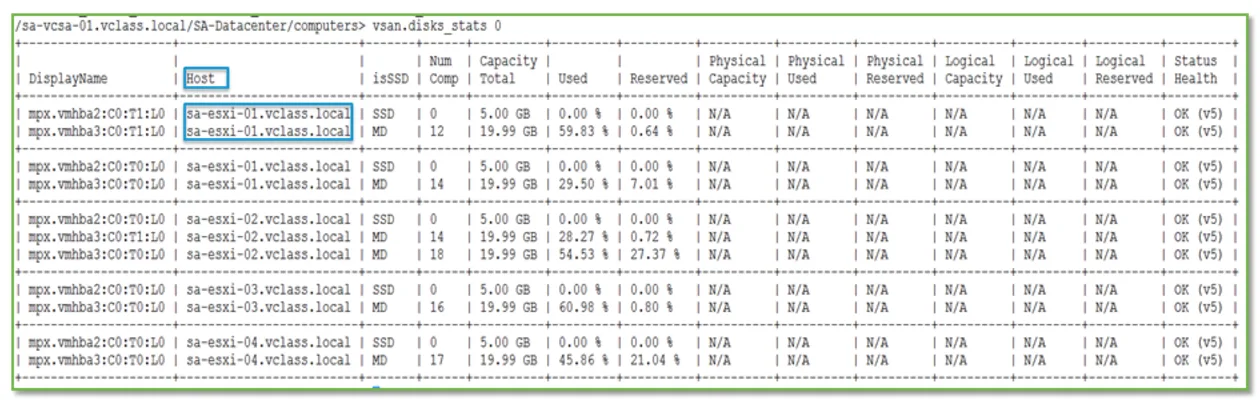
vsan.disks_stats 0
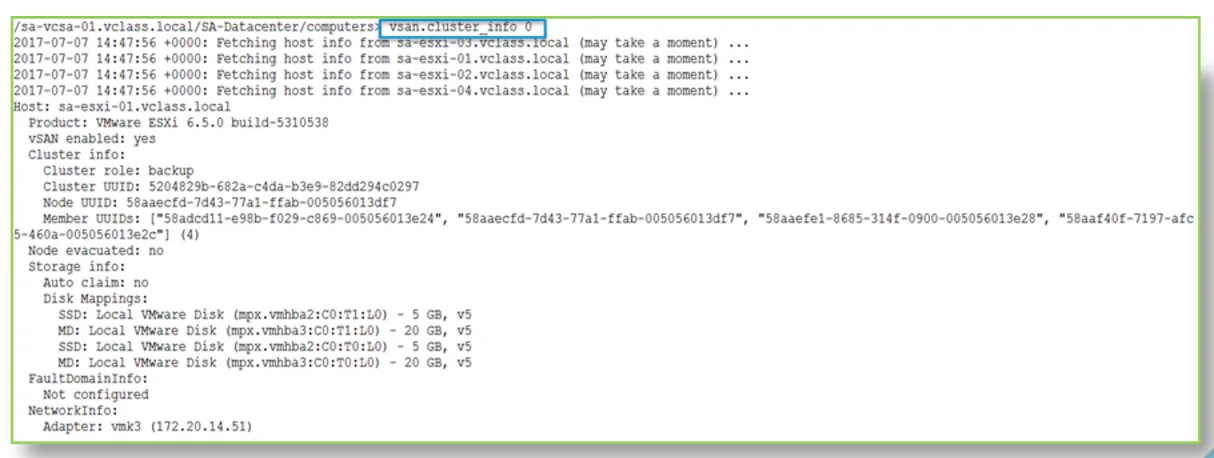
vsan.cluster_info 0
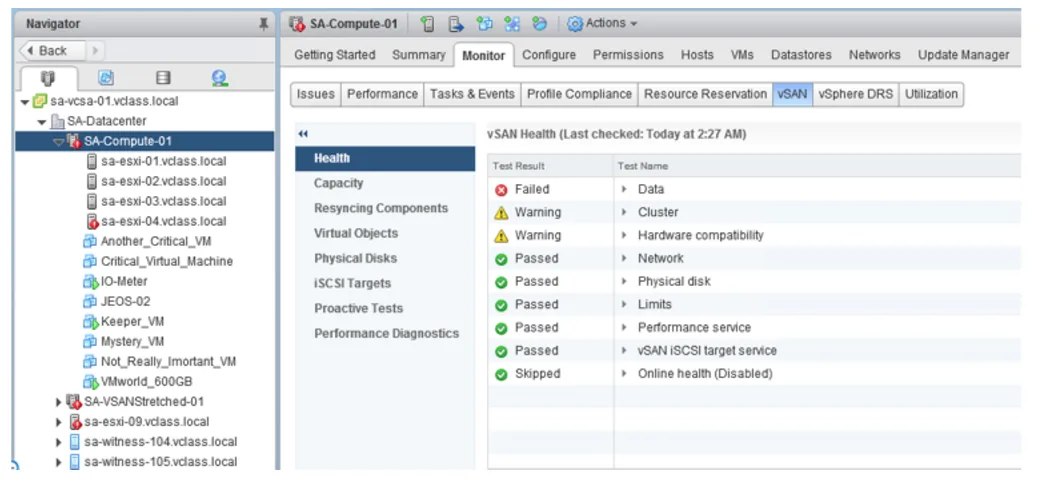
Health UI
vSAN Disk balance
vSAN Health
python /usr/lib/vmware-vpx/vsan-health/vsan-vc-health-status.py > /tmp/vsan_status.txt
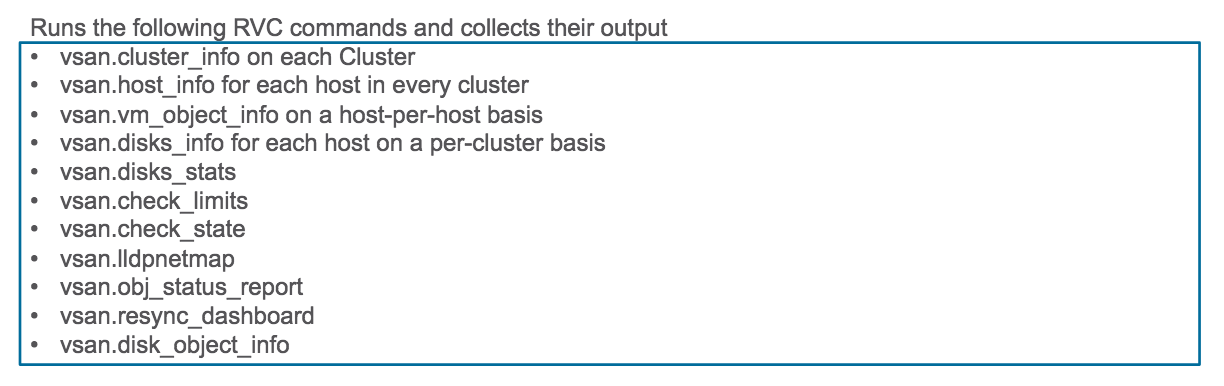
Running this on a individual node:
Location: /usr/lib/vmware/vsan/bin/vsan-health-status.pyc
python /usr/lib/vmware/vsan/bin/vsan-health-status.pyc
KB 2107705 has more information on that.
When to use those: Health Service on vCenter not available
Use Cases
Cluster with 6 hosts. Three nodes were added. No capacity added after adding the hosts.
esxcli vsan storage list
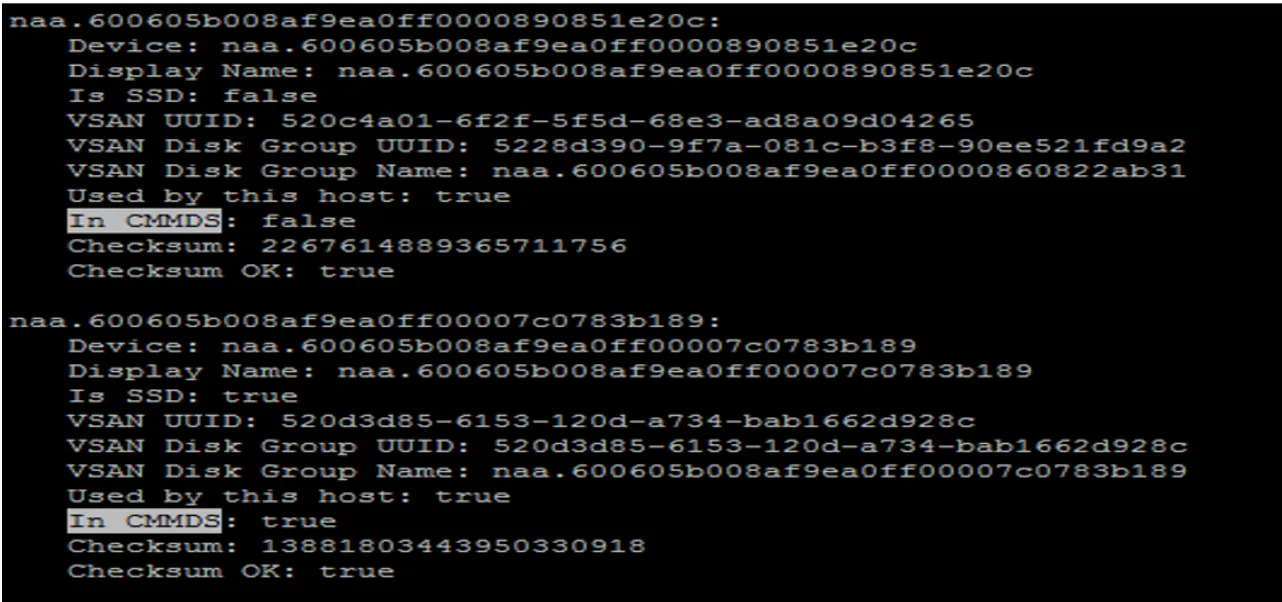 In CMMDS: false – take note of the naa… ID
- Check vobd.log (search for naa… ID)
- Check boot.gz (use zcat; search for naa… ID)
- Disk naa… ID detected to be a snapshot
Resolution:
– Disk cannot be added because it already has a filesystem on it
– Disk was given UUID, it was in a cluster and used at some point
– Verified to delete data
– Used partedutil to kill partitions
– Delete disk groups and recreate disk groups
Useful Logs:
vobd.log
Search for “problem” and “permanent”