End of support for the classic Teams client in VDI
The classic Teams client in VDI reaches end of support on 30 June 2024. This guide covers installing the new client in a VDI.


The classic Teams in VDI will reach end of support on June 30th, 2024, after which users will not be able to use the classic Teams and will be asked to switch to new Teams app. Therefore, we recommend you update to new Teams today. Source
Microsoft announced this on 5 December 2023, which gives companies barely half a year to switch from the old Teams client to the new one.
More on the end-of-support dates for the classic Teams client: https://learn.microsoft.com/en-us/microsoftteams/teams-classic-client-end-of-availability
So this guide covers installing the new Microsoft Teams client for VDI. Media optimisation has been on by default since Horizon 2212. For Horizon older than 2212, follow this link.
The new Microsoft Teams app needs the same special handling for VDI and specific installation instructions to work with VMware Horizon and other VDI environments.
You can run the old and the new Teams client side by side while users are in transition. For that, both Teams clients simply have to be installed on the master image at the same time.

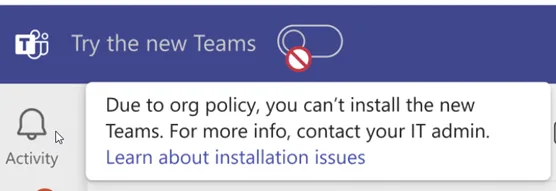
If that button is not visible, the Teams update policy on the O365 tenant needs adjusting. Allow the switch to the new Teams client
Installing the new Teams client in a VDI
- Download the .exe installer
- Download the MSIX:
- Open a CMD as administrator and run:
.\teamsbootstrapper.exe -p -o "c:\path\to\teams.msix"

Note: it can also be installed without an offline installer, meaning without -o "path/to/msix". Then the newest version is simply downloaded and installed.
Uninstalling
In PowerShell, run:
./teamsbootstrapper -x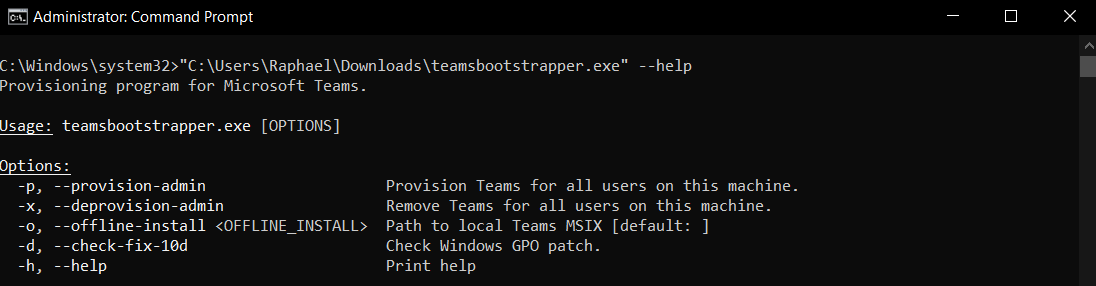
Disabling new Teams auto-update
To stop new Teams updating itself, use the following registry key on the virtual machine. Only new Teams builds higher than 23306.3314.2555.9628 in VDI can handle this key.
Location: Computer\HKEY_LOCAL_MACHINE\SOFTWARE\Microsoft\Teams
Name: disableAutoUpdate
Type: DWORD
Value: 1
Profile and cache location for the new Teams client
All user settings and configuration are now stored in these locations, so they can be carried into DEM for example:
For Teams to work properly, these folders and files have to be persisted.
%localappdata%\Packages\MSTeams_8wekyb3d8bbwe\LocalCache\Microsoft\MSTeams%localappdata%\Publishers\8wekyb3d8bbwe\TeamsSharedConfig\app_switcher_settings.json%localappdata%\Publishers\8wekyb3d8bbwe\TeamsSharedConfig\tma_settings.json
TeamsSharedConfig holds the user configuration for switching the Teams app, including which should be the default, classic or new Teams, and for the Teams meeting add-in for Outlook.
The “meeting-addin” folder under TeamsSharedConfig should not be persisted, as that can cause problems with the default meeting coordinates in the meeting templates inserted into Outlook.
Excluding these paths reduces the size of the user cache and optimises a non-persistent setup further:
<localappdata>\Packages\MSTeams_8wekyb3d8bbwe\LocalCache\Microsoft\MSTeams\Logs<localappdata>\Packages\MSTeams_8wekyb3d8bbwe\LocalCache\Microsoft\MSTeams\PerfLogs<localappdata>\Packages\MSTeams_8wekyb3d8bbwe\LocalCache\Microsoft\MSTeams\EBWebView\WV2Profile_tfw\WebStorage
Excluding the WebStorage folder, which is used for domains hosted inside Teams such as SharePoint or Viva Learning, saves considerable storage. It can also affect performance, because users lose the benefit of the cache.
Important
Customers using FSLogix have to install hotfix 2.9.8716.30241 for the new Teams client to integrate correctly in VDI. The hotfix fixes these problems:
In non-persistent multi-user environments, new Teams could end up unregistered for some users after a new Teams update.
- During a user logoff, the new Teams client user data and cache in %LocalAppData%\Packages\MSTeams_8wekyb3d8bbwe\LocalCache was not saved into the FSLogix profile or ODFC containers.
Note: customers using profile and ODFC containers, or only ODFC containers, still have to add the ‘IncludeTeams’ setting for the new Teams user data and cache to be kept.
Installing the old Teams client in a VDI
- Download the Teams MSI package:
- Install with these commands:
reg add "HKLM\SOFTWARE\Microsoft\Teams" /v IsWVDEnvironment /t REG_DWORD /d 1 /fmsiexec /i "path_to_msi" /l*v "install_logfile_name" ALLUSERS=1