Storage performance testing with IOmeter
Every successful storage project ends with a storage performance test during system acceptance, checking the array, the storage area network and the hosts.
Every successful storage project includes a storage performance test, run during system acceptance. It checks the implemented storage array, the storage area network (Fibre Channel or iSCSI) and the hosts for the performance they deliver.
Getting the maximum out of a storage system takes more than a performance test from a single host or virtual server. To reach the maximum you have to run a workload from several hosts onto several volumes. Most environments are virtualised, so this post focuses on a VMware vSphere platform, but the principles are the same elsewhere.
For a performance test you should use at least 4 VMs with 4 VMDKs each, sitting on 4 different datastores. In IOmeter you add 4 workers per VM, each worker accessing one volume. Each VM should run on its own ESXi server. That way you use the maximum of the available ESXi host resources and of the datastores’ IO queues.
IOmeter is a practical tool for measuring performance. It is a free download from www.iometer.org.
IOmeter has two parts.
- IOmeter.exe is the graphical interface, where you configure the detail of the tests.
- Dynamo.exe is the workload generator, which produces the load on the storage.
One way to run the tests is to start IOmeter on several virtual servers. Each VM gets its own performance results, but there is no overall view of total performance.
The other way is to run IOmeter.exe (the collector) on one VM, start dynamo.exe (the workers) on the others and let them connect to the IOmeter GUI VM. The advantage is that the total storage performance shows up in the IOmeter GUI.
To prepare, take care of the following:
- Forward and reverse DNS lookup work for every VM used in the test.
- Disable the Windows firewall, so IOmeter.exe and Dynamo can talk properly.
- For best performance, configure the VMDK files as eager zeroed thick.
- Disable all antivirus and endpoint protection software, so the scanning process does not obstruct or throttle storage performance.
Test VM configuration
- Windows Server 2022
- 4 vCPU
- 8 GB RAM
- 1x 100 GB disk for the OS
- 4x 200 GB disk for the IOmeter test
IOmeter configuration
Worker configuration
- 4 workers per VM
- 1 worker per disk
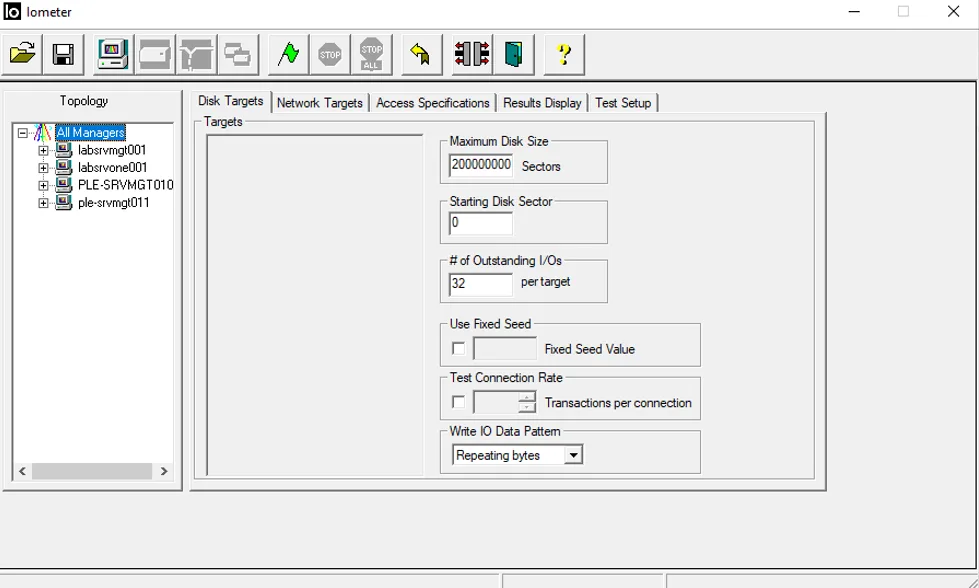
Disk target configuration
- Maximum disk size: 80,000,000 sectors, roughly 40 GB
- Outstanding I/O: 32
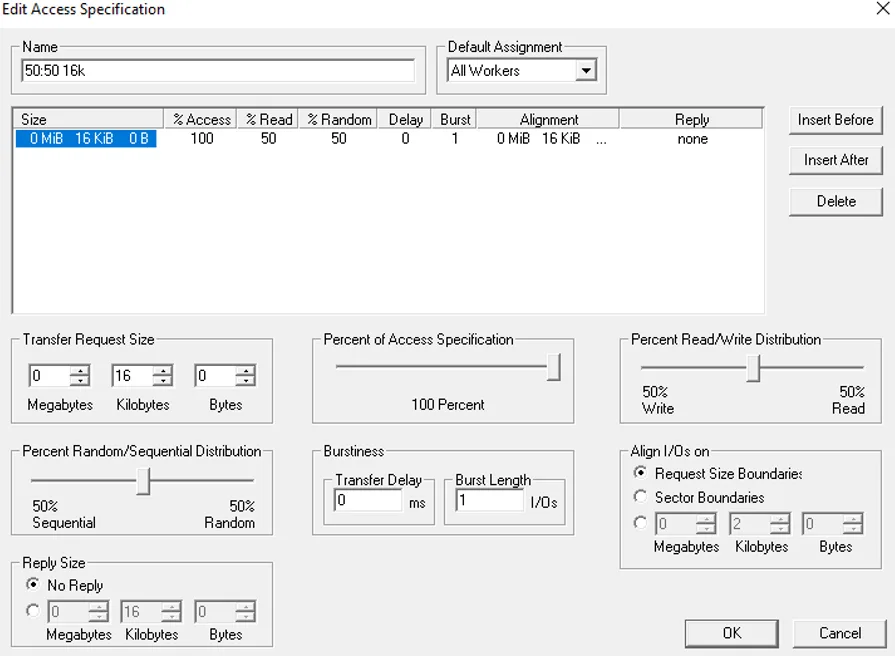
Access specification
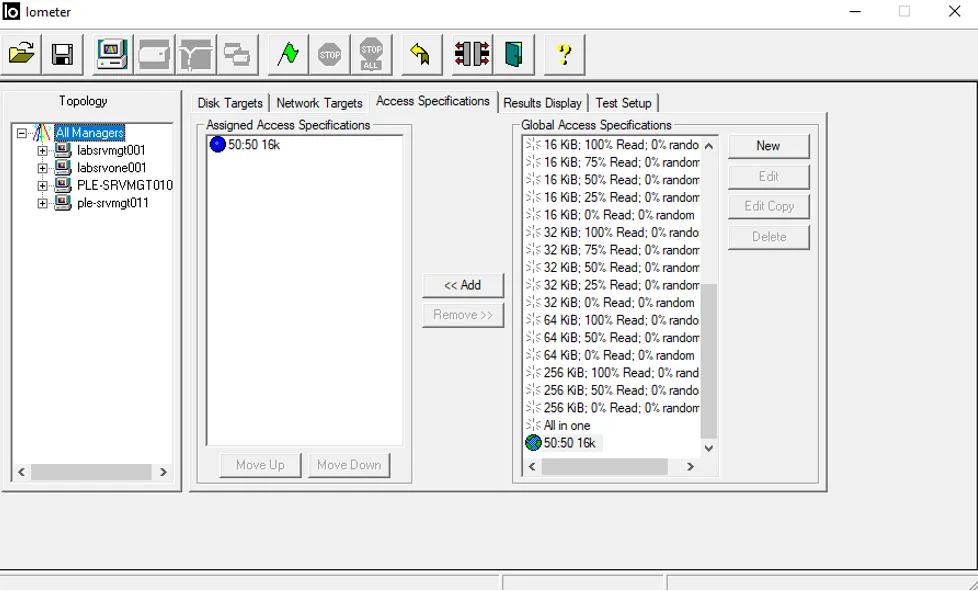
The access specification defines the workload profile. Which one best simulates your workload depends on your environment. These are the profiles we use most often in our tests.
| Name | Sequential:Random | Read:Write | Block size |
|---|---|---|---|
| Perf-1 | 50:50 | 50:50 | 8 kb |
| Perf-2 | 50:50 | 70:30 | 16 kb |
| Perf-3 | 30:70 | 70:30 | 32 kb |
| Perf-4 (maximum read performance) | 100:0 | 100:0 | 64 kb |
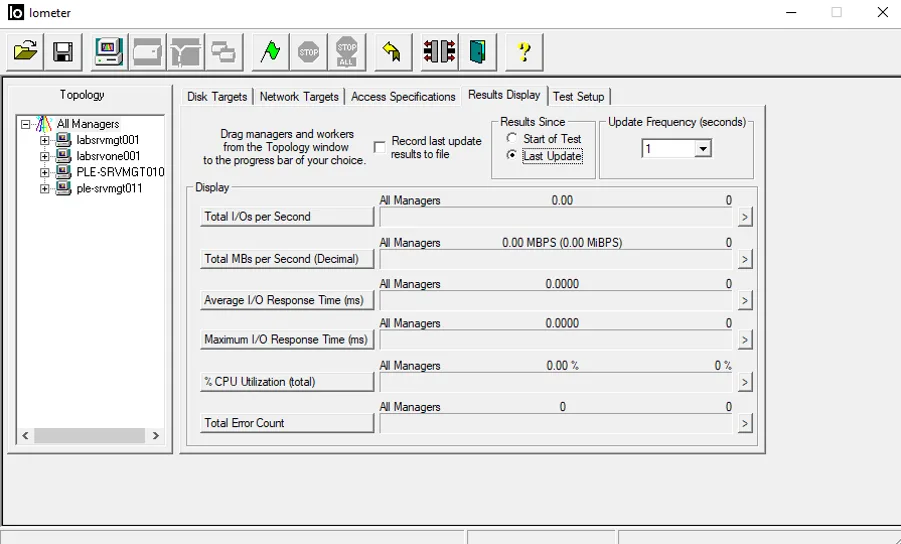
Result display
- Results since: last update
- Update frequency: 1 second
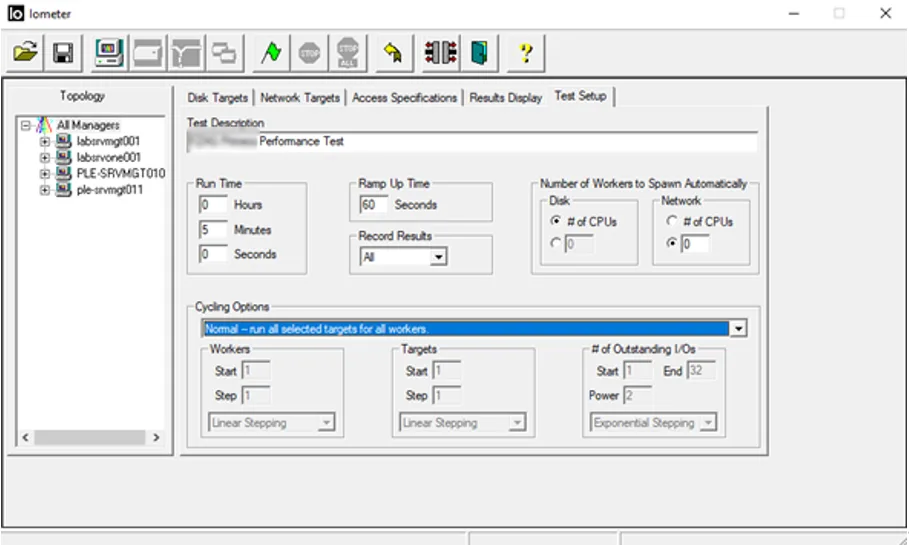
Test setup
- Ramp-up time: 60 seconds
- Run time: 5 minutes
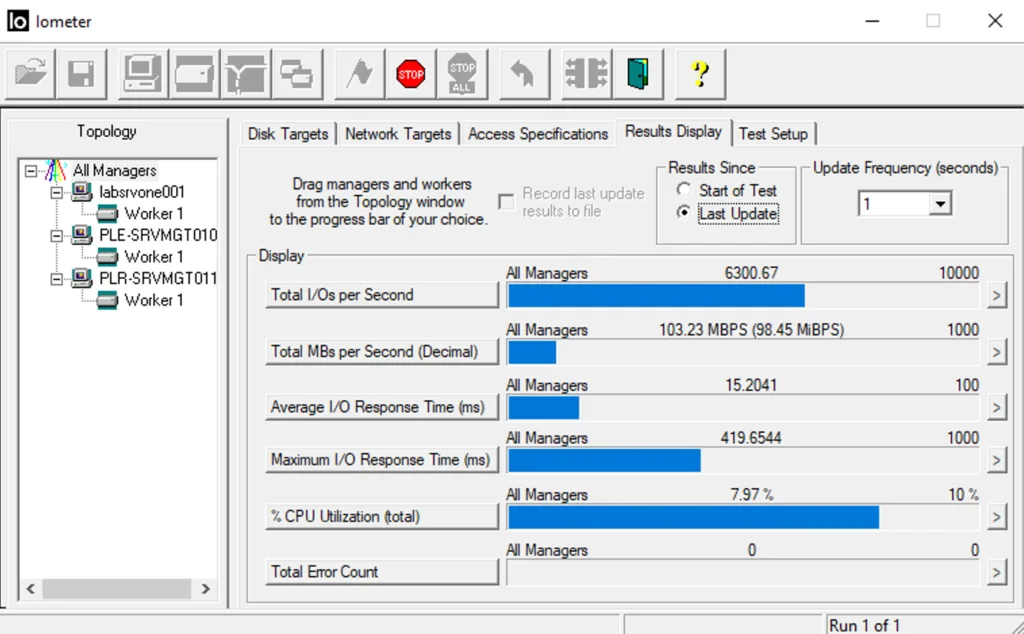
Starting the performance test
To run the test on all VMs, start dynamo.exe first. Once it is running on all worker nodes, start IOmeter.exe, the collector. The worker nodes connect automatically.
To start the Dynamo daemon and connect it to the IOmeter collector, run:
dynamo.exe -i IP_IOmeter_VM -m IP_Dynamo_VM -n Hostname_of_Dynamo-VM
Next step
Would you like to know more about measuring and analysing storage systems? We have years of experience from countless storage projects and support cases and can help you too.