build 6ddc7a35 | content blog-content@417154f · 338 posts | profiles 32 · corpus 315 | ● 0 skipped | format run

$ soultec get post/how-to-intelligent-hub-macos-not-synchronizing-after-active-directory-user-name-change -o yaml$ soultec get post/how-to-intelligent-hub-macos-not-synchronizing-after-active-directory-user-name-change -o json$ soultec get post/how-to-intelligent-hub-macos-not-synchronizing-after-active-directory-user-name-change -o toml$ soultec get post/how-to-intelligent-hub-macos-not-synchronizing-after-active-directory-user-name-change -o xml$ python3 how-to-intelligent-hub-macos-not-synchronizing-after-active-directory-user-name-change.pyPS> ./how-to-intelligent-hub-macos-not-synchronizing-after-active-directory-user-name-change.ps1$ go run how-to-intelligent-hub-macos-not-synchronizing-after-active-directory-user-name-change.go$ node how-to-intelligent-hub-macos-not-synchronizing-after-active-directory-user-name-change.js

apiVersion: soultec.ch/v1kind: Postmetadata: name: how-to-intelligent-hub-macos-not-synchronizing-after-active-directory-user-name-change locale: en labels: author: valentina-cicmak series: how-to capability/automation: 1.81 capability/modern-workplace: 1.69 annotations: source: blog-content/posts/en/how-to-intelligent-hub-macos-not-synchronizing-after-active-directory-user-name-change.md route: /en/insights/how-to-intelligent-hub-macos-not-synchronizing-after-active-directory-user-name-change/ schema: /nerd/schema/posts.json markdown: /en/insights/how-to-intelligent-hub-macos-not-synchronizing-after-active-directory-user-name-change.mdspec: title: >- Intelligent Hub on macOS Not Synchronizing After an Active Directory User Name Change date: 2026-07-14 author: valentina-cicmak locale: en summary: >- After changing a user's name in Active Directory, the new information may already be visible in Workspace ONE UEM and Omnissa Access while Intelligent Hub on the Mac still displays the old name. capabilities: [automation, modern-workplace] series: how-to hero: >- /blog-assets/how-to-intelligent-hub-macos-not-synchronizing-after-active-directory-user-name-change/hero.webp legacySlug: >- how-to-intelligent-hub-macos-not-synchronizing-after-active-directory-user-name-change migrated: 2026-08-24 draft: false sections: - body: | After changing a user's name in Active Directory, the new information may already be visible in Workspace ONE UEM and Omnissa Access while Intelligent Hub on the Mac still displays the old name. ### Trigger the Synchronization Manually Open Terminal on the affected Mac and run: ```bash sudo hubcli sync ``` After the command has completed, quit and reopen Intelligent Hub. The updated user information should now be displayed. Before running the command, verify that the new name is already correct in Active Directory, Workspace ONE UEM, and Omnissa Access. ### Automate the Synchronization with Workspace ONE UEM The synchronization can also be automated using a macOS script in Workspace ONE UEM. Navigate to: Resources → Scripting → Scripts → Add ![](/blog-assets/how-to-intelligent-hub-macos-not-synchronizing-after-active-directory-user-name-change/01.webp) choose MacOS ![](/blog-assets/how-to-intelligent-hub-macos-not-synchronizing-after-active-directory-user-name-change/02.webp) Configure the script with the following settings: - Name: Hub Sync - Language: Bash - Execution Context: System - Timeout: 600 seconds Use the following code: ```bash hubcli sync ``` ![](/blog-assets/how-to-intelligent-hub-macos-not-synchronizing-after-active-directory-user-name-change/03.webp) Save the script and assign it to the relevant MacBooks. The script can then be executed automatically using the required assignment schedule or trigger. ### Important The command refreshes the information displayed by Intelligent Hub. It does not rename the local macOS account or its home directory. If the old name remains visible, verify that the device is assigned to the correct directory user and that the updated user information has successfully synchronized with UEM and Access. - heading:
Next Steps

body: | If you've read this far then chances are you are still having issues. [Feel free to reach out to us](https://soultec.ch/contact-us/). We're happy to help out!status: corpus: 315 alsoLike: - {ref: solutions/igel/igel-app-portal, score: 0.85} - {ref: solutions/microsoft/easylife-365-collaboration, score: 0.85} - {ref: posts/vmware-explore-las-vegas-hackathon-2025, score: 0.51} search: /en/search.json
{ "apiVersion": "soultec.ch/v1", "kind": "Post", "metadata": { "name": "how-to-intelligent-hub-macos-not-synchronizing-after-active-directory-user-name-change", "locale": "en", "labels": { "author": "valentina-cicmak", "series": "how-to", "capability/automation": 1.81, "capability/modern-workplace": 1.69 }, "annotations": { "source": "blog-content/posts/en/how-to-intelligent-hub-macos-not-synchronizing-after-active-directory-user-name-change.md", "route": "/en/insights/how-to-intelligent-hub-macos-not-synchronizing-after-active-directory-user-name-change/", "schema": "/nerd/schema/posts.json", "markdown": "/en/insights/how-to-intelligent-hub-macos-not-synchronizing-after-active-directory-user-name-change.md" } }, "spec": { "title": "Intelligent Hub on macOS Not Synchronizing After an Active Directory User Name Change", "date": "2026-07-14", "author": "valentina-cicmak", "locale": "en", "summary": "After changing a user's name in Active Directory, the new information may already be visible in Workspace ONE UEM and Omnissa Access while Intelligent Hub on the Mac still displays the old name.", "capabilities": [ "automation", "modern-workplace" ], "series": "how-to", "hero": "/blog-assets/how-to-intelligent-hub-macos-not-synchronizing-after-active-directory-user-name-change/hero.webp", "legacySlug": "how-to-intelligent-hub-macos-not-synchronizing-after-active-directory-user-name-change", "migrated": "2026-08-24", "draft": false, "sections": [ { "body": "After changing a user's name in Active Directory, the new information may already be visible in Workspace ONE UEM and Omnissa Access while Intelligent Hub on the Mac still displays the old name.\n\n### Trigger the Synchronization Manually\n\nOpen Terminal on the affected Mac and run:\n\n```bash\nsudo hubcli sync\n```\n\nAfter the command has completed, quit and reopen Intelligent Hub. The updated user information should now be displayed.\n\nBefore running the command, verify that the new name is already correct in Active Directory, Workspace ONE UEM, and Omnissa Access.\n\n### Automate the Synchronization with Workspace ONE UEM\n\nThe synchronization can also be automated using a macOS script in Workspace ONE UEM.\n\nNavigate to:\n\nResources → Scripting → Scripts → Add\n\n![](/blog-assets/how-to-intelligent-hub-macos-not-synchronizing-after-active-directory-user-name-change/01.webp)\n\nchoose MacOS\n\n![](/blog-assets/how-to-intelligent-hub-macos-not-synchronizing-after-active-directory-user-name-change/02.webp)\n\nConfigure the script with the following settings:\n\n- Name: Hub Sync\n- Language: Bash\n- Execution Context: System\n- Timeout: 600 seconds\n\nUse the following code:\n\n```bash\nhubcli sync\n```\n\n![](/blog-assets/how-to-intelligent-hub-macos-not-synchronizing-after-active-directory-user-name-change/03.webp)\n\nSave the script and assign it to the relevant MacBooks. The script can then be executed automatically using the required assignment schedule or trigger.\n\n### Important\n\nThe command refreshes the information displayed by Intelligent Hub. It does not rename the local macOS account or its home directory.\n\nIf the old name remains visible, verify that the device is assigned to the correct directory user and that the updated user information has successfully synchronized with UEM and Access." }, { "heading": "

Next Steps

",
"body": "If you've read this far then chances are you are still having issues. [Feel free to reach out to us](https://soultec.ch/contact-us/). We're happy to help out!" } ] }, "status": { "corpus": 315, "alsoLike": [ { "ref": "solutions/igel/igel-app-portal", "score": "0.85" }, { "ref": "solutions/microsoft/easylife-365-collaboration", "score": "0.85" }, { "ref": "posts/vmware-explore-las-vegas-hackathon-2025", "score": "0.51" } ], "search": "/en/search.json" }}
apiVersion = "soultec.ch/v1"kind = "Post"[metadata]name = "how-to-intelligent-hub-macos-not-synchronizing-after-active-directory-user-name-change"locale = "en"[metadata.labels]author = "valentina-cicmak"series = "how-to""capability/automation" = 1.81"capability/modern-workplace" = 1.69[metadata.annotations]source = "blog-content/posts/en/how-to-intelligent-hub-macos-not-synchronizing-after-active-directory-user-name-change.md"route = "/en/insights/how-to-intelligent-hub-macos-not-synchronizing-after-active-directory-user-name-change/"schema = "/nerd/schema/posts.json"markdown = "/en/insights/how-to-intelligent-hub-macos-not-synchronizing-after-active-directory-user-name-change.md"[spec]title = "Intelligent Hub on macOS Not Synchronizing After an Active Directory User Name Change"date = 2026-07-14author = "valentina-cicmak"locale = "en"summary = "After changing a user's name in Active Directory, the new information may already be visible in Workspace ONE UEM and Omnissa Access while Intelligent Hub on the Mac still displays the old name."capabilities = ["automation", "modern-workplace"]series = "how-to"hero = "/blog-assets/how-to-intelligent-hub-macos-not-synchronizing-after-active-directory-user-name-change/hero.webp"legacySlug = "how-to-intelligent-hub-macos-not-synchronizing-after-active-directory-user-name-change"migrated = 2026-08-24draft = false[[spec.sections]]body = '''After changing a user's name in Active Directory, the new information may already be visible in Workspace ONE UEM and Omnissa Access while Intelligent Hub on the Mac still displays the old name.### Trigger the Synchronization ManuallyOpen Terminal on the affected Mac and run:```bashsudo hubcli sync```After the command has completed, quit and reopen Intelligent Hub. The updated user information should now be displayed.Before running the command, verify that the new name is already correct in Active Directory, Workspace ONE UEM, and Omnissa Access.### Automate the Synchronization with Workspace ONE UEMThe synchronization can also be automated using a macOS script in Workspace ONE UEM.Navigate to:Resources → Scripting → Scripts → Add![](/blog-assets/how-to-intelligent-hub-macos-not-synchronizing-after-active-directory-user-name-change/01.webp)choose MacOS![](/blog-assets/how-to-intelligent-hub-macos-not-synchronizing-after-active-directory-user-name-change/02.webp)Configure the script with the following settings:- Name: Hub Sync- Language: Bash- Execution Context: System- Timeout: 600 secondsUse the following code:```bashhubcli sync```![](/blog-assets/how-to-intelligent-hub-macos-not-synchronizing-after-active-directory-user-name-change/03.webp)Save the script and assign it to the relevant MacBooks. The script can then be executed automatically using the required assignment schedule or trigger.### ImportantThe command refreshes the information displayed by Intelligent Hub. It does not rename the local macOS account or its home directory.If the old name remains visible, verify that the device is assigned to the correct directory user and that the updated user information has successfully synchronized with UEM and Access.'''[[spec.sections]]heading = "

Next Steps

"
body = "If you've read this far then chances are you are still having issues. [Feel free to reach out to us](https://soultec.ch/contact-us/). We're happy to help out!"[status]corpus = 315search = "/en/search.json"[[status.alsoLike]]ref = "solutions/igel/igel-app-portal"score = "0.85"[[status.alsoLike]]ref = "solutions/microsoft/easylife-365-collaboration"score = "0.85"[[status.alsoLike]]ref = "posts/vmware-explore-las-vegas-hackathon-2025"score = "0.51"
<?xml version="1.0" encoding="UTF-8"?><manifest kind="Post"> <apiVersion>soultec.ch/v1</apiVersion> <metadata> <name>how-to-intelligent-hub-macos-not-synchronizing-after-active-directory-user-name-change</name> <locale>en</locale> <labels> <author>valentina-cicmak</author> <series>how-to</series> <entry key="capability/automation">1.81</entry> <entry key="capability/modern-workplace">1.69</entry> </labels> <annotations> <source>blog-content/posts/en/how-to-intelligent-hub-macos-not-synchronizing-after-active-directory-user-name-change.md</source> <route>/en/insights/how-to-intelligent-hub-macos-not-synchronizing-after-active-directory-user-name-change/</route> <schema>/nerd/schema/posts.json</schema> <markdown>/en/insights/how-to-intelligent-hub-macos-not-synchronizing-after-active-directory-user-name-change.md</markdown> </annotations> </metadata> <spec> <title>Intelligent Hub on macOS Not Synchronizing After an Active Directory User Name Change</title> <date>2026-07-14</date> <author>valentina-cicmak</author> <locale>en</locale> <summary>After changing a user's name in Active Directory, the new information may already be visible in Workspace ONE UEM and Omnissa Access while Intelligent Hub on the Mac still displays the old name.</summary> <capabilities> <item>automation</item> <item>modern-workplace</item> </capabilities> <series>how-to</series> <hero>/blog-assets/how-to-intelligent-hub-macos-not-synchronizing-after-active-directory-user-name-change/hero.webp</hero> <legacySlug>how-to-intelligent-hub-macos-not-synchronizing-after-active-directory-user-name-change</legacySlug> <migrated>2026-08-24</migrated> <draft>false</draft> <sections> <section> <body>After changing a user's name in Active Directory, the new information may already be visible in Workspace ONE UEM and Omnissa Access while Intelligent Hub on the Mac still displays the old name.### Trigger the Synchronization ManuallyOpen Terminal on the affected Mac and run:```bashsudo hubcli sync```After the command has completed, quit and reopen Intelligent Hub. The updated user information should now be displayed.Before running the command, verify that the new name is already correct in Active Directory, Workspace ONE UEM, and Omnissa Access.### Automate the Synchronization with Workspace ONE UEMThe synchronization can also be automated using a macOS script in Workspace ONE UEM.Navigate to:Resources → Scripting → Scripts → Add![](/blog-assets/how-to-intelligent-hub-macos-not-synchronizing-after-active-directory-user-name-change/01.webp)choose MacOS![](/blog-assets/how-to-intelligent-hub-macos-not-synchronizing-after-active-directory-user-name-change/02.webp)Configure the script with the following settings:- Name: Hub Sync- Language: Bash- Execution Context: System- Timeout: 600 secondsUse the following code:```bashhubcli sync```![](/blog-assets/how-to-intelligent-hub-macos-not-synchronizing-after-active-directory-user-name-change/03.webp)Save the script and assign it to the relevant MacBooks. The script can then be executed automatically using the required assignment schedule or trigger.### ImportantThe command refreshes the information displayed by Intelligent Hub. It does not rename the local macOS account or its home directory.If the old name remains visible, verify that the device is assigned to the correct directory user and that the updated user information has successfully synchronized with UEM and Access. </body> </section> <section> <heading>

Next Steps

</heading>
<body>If you've read this far then chances are you are still having issues. [Feel free to reach out to us](https://soultec.ch/contact-us/). We're happy to help out!</body> </section> </sections> </spec> <status> <corpus>315</corpus> <alsoLike> <item> <ref>solutions/igel/igel-app-portal</ref> <score>0.85</score> </item> <item> <ref>solutions/microsoft/easylife-365-collaboration</ref> <score>0.85</score> </item> <item> <ref>posts/vmware-explore-las-vegas-hackathon-2025</ref> <score>0.51</score> </item> </alsoLike> <search>/en/search.json</search> </status></manifest>
# Code generated by the soultec.ch build. DO NOT EDIT.import jsonPAGE = { "apiVersion": "soultec.ch/v1", "kind": "Post", "metadata": { "name": "how-to-intelligent-hub-macos-not-synchronizing-after-active-directory-user-name-change", "locale": "en", "labels": { "author": "valentina-cicmak", "series": "how-to", "capability/automation": 1.81, "capability/modern-workplace": 1.69, }, "annotations": { "source": "blog-content/posts/en/how-to-intelligent-hub-macos-not-synchronizing-after-active-directory-user-name-change.md", "route": "/en/insights/how-to-intelligent-hub-macos-not-synchronizing-after-active-directory-user-name-change/", "schema": "/nerd/schema/posts.json", "markdown": "/en/insights/how-to-intelligent-hub-macos-not-synchronizing-after-active-directory-user-name-change.md", }, }, "spec": { "title": "Intelligent Hub on macOS Not Synchronizing After an Active Directory User Name Change", "date": "2026-07-14", "author": "valentina-cicmak", "locale": "en", "summary": "After changing a user's name in Active Directory, the new information may already be visible in Workspace ONE UEM and Omnissa Access while Intelligent Hub on the Mac still displays the old name.", "capabilities": ["automation", "modern-workplace"], "series": "how-to", "hero": "/blog-assets/how-to-intelligent-hub-macos-not-synchronizing-after-active-directory-user-name-change/hero.webp", "legacySlug": "how-to-intelligent-hub-macos-not-synchronizing-after-active-directory-user-name-change", "migrated": "2026-08-24", "draft": False, "sections": [ { "body": ( "After changing a user's name in Active Directory, the new information may already be visible in Workspace ONE UEM and Omnissa Access while Intelligent Hub on the Mac still displays the old name.\n" "\n" "### Trigger the Synchronization Manually\n" "\n" "Open Terminal on the affected Mac and run:\n" "\n" "```bash\n" "sudo hubcli sync\n" "```\n" "\n" "After the command has completed, quit and reopen Intelligent Hub. The updated user information should now be displayed.\n" "\n" "Before running the command, verify that the new name is already correct in Active Directory, Workspace ONE UEM, and Omnissa Access.\n" "\n" "### Automate the Synchronization with Workspace ONE UEM\n" "\n" "The synchronization can also be automated using a macOS script in Workspace ONE UEM.\n" "\n" "Navigate to:\n" "\n" "Resources → Scripting → Scripts → Add\n" "\n" "![](/blog-assets/how-to-intelligent-hub-macos-not-synchronizing-after-active-directory-user-name-change/01.webp)\n" "\n" "choose MacOS\n" "\n" "![](/blog-assets/how-to-intelligent-hub-macos-not-synchronizing-after-active-directory-user-name-change/02.webp)\n" "\n" "Configure the script with the following settings:\n" "\n" "- Name: Hub Sync\n" "- Language: Bash\n" "- Execution Context: System\n" "- Timeout: 600 seconds\n" "\n" "Use the following code:\n" "\n" "```bash\n" "hubcli sync\n" "```\n" "\n" "![](/blog-assets/how-to-intelligent-hub-macos-not-synchronizing-after-active-directory-user-name-change/03.webp)\n" "\n" "Save the script and assign it to the relevant MacBooks. The script can then be executed automatically using the required assignment schedule or trigger.\n" "\n" "### Important\n" "\n" "The command refreshes the information displayed by Intelligent Hub. It does not rename the local macOS account or its home directory.\n" "\n" "If the old name remains visible, verify that the device is assigned to the correct directory user and that the updated user information has successfully synchronized with UEM and Access." ), }, { "heading": "

Next Steps

",
"body": "If you've read this far then chances are you are still having issues. [Feel free to reach out to us](https://soultec.ch/contact-us/). We're happy to help out!", }, ], }, "status": { "corpus": 315, "alsoLike": [ { "ref": "solutions/igel/igel-app-portal", "score": "0.85", }, { "ref": "solutions/microsoft/easylife-365-collaboration", "score": "0.85", }, { "ref": "posts/vmware-explore-las-vegas-hackathon-2025", "score": "0.51", }, ], "search": "/en/search.json", },}if __name__ == "__main__": print(json.dumps(PAGE, indent=2, ensure_ascii=False))
# Code generated by the soultec.ch build. DO NOT EDIT.$Page = [ordered]@{ apiVersion = 'soultec.ch/v1' kind = 'Post' metadata = [ordered]@{ name = 'how-to-intelligent-hub-macos-not-synchronizing-after-active-directory-user-name-change' locale = 'en' labels = [ordered]@{ author = 'valentina-cicmak' series = 'how-to' 'capability/automation' = 1.81 'capability/modern-workplace' = 1.69 } annotations = [ordered]@{ source = 'blog-content/posts/en/how-to-intelligent-hub-macos-not-synchronizing-after-active-directory-user-name-change.md' route = '/en/insights/how-to-intelligent-hub-macos-not-synchronizing-after-active-directory-user-name-change/' schema = '/nerd/schema/posts.json' markdown = '/en/insights/how-to-intelligent-hub-macos-not-synchronizing-after-active-directory-user-name-change.md' } } spec = [ordered]@{ title = 'Intelligent Hub on macOS Not Synchronizing After an Active Directory User Name Change' date = '2026-07-14' author = 'valentina-cicmak' locale = 'en' summary = 'After changing a user''s name in Active Directory, the new information may already be visible in Workspace ONE UEM and Omnissa Access while Intelligent Hub on the Mac still displays the old name.' capabilities = @('automation', 'modern-workplace') series = 'how-to' hero = '/blog-assets/how-to-intelligent-hub-macos-not-synchronizing-after-active-directory-user-name-change/hero.webp' legacySlug = 'how-to-intelligent-hub-macos-not-synchronizing-after-active-directory-user-name-change' migrated = '2026-08-24' draft = $false sections = @( [ordered]@{ body = @'After changing a user's name in Active Directory, the new information may already be visible in Workspace ONE UEM and Omnissa Access while Intelligent Hub on the Mac still displays the old name.### Trigger the Synchronization ManuallyOpen Terminal on the affected Mac and run:```bashsudo hubcli sync```After the command has completed, quit and reopen Intelligent Hub. The updated user information should now be displayed.Before running the command, verify that the new name is already correct in Active Directory, Workspace ONE UEM, and Omnissa Access.### Automate the Synchronization with Workspace ONE UEMThe synchronization can also be automated using a macOS script in Workspace ONE UEM.Navigate to:Resources → Scripting → Scripts → Add![](/blog-assets/how-to-intelligent-hub-macos-not-synchronizing-after-active-directory-user-name-change/01.webp)choose MacOS![](/blog-assets/how-to-intelligent-hub-macos-not-synchronizing-after-active-directory-user-name-change/02.webp)Configure the script with the following settings:- Name: Hub Sync- Language: Bash- Execution Context: System- Timeout: 600 secondsUse the following code:```bashhubcli sync```![](/blog-assets/how-to-intelligent-hub-macos-not-synchronizing-after-active-directory-user-name-change/03.webp)Save the script and assign it to the relevant MacBooks. The script can then be executed automatically using the required assignment schedule or trigger.### ImportantThe command refreshes the information displayed by Intelligent Hub. It does not rename the local macOS account or its home directory.If the old name remains visible, verify that the device is assigned to the correct directory user and that the updated user information has successfully synchronized with UEM and Access.'@ } [ordered]@{ heading = '

Next Steps

'
body = 'If you''ve read this far then chances are you are still having issues. [Feel free to reach out to us](https://soultec.ch/contact-us/). We''re happy to help out!' } ) } status = [ordered]@{ corpus = 315 alsoLike = @( [ordered]@{ ref = 'solutions/igel/igel-app-portal' score = '0.85' } [ordered]@{ ref = 'solutions/microsoft/easylife-365-collaboration' score = '0.85' } [ordered]@{ ref = 'posts/vmware-explore-las-vegas-hackathon-2025' score = '0.51' } ) search = '/en/search.json' }}$Page | ConvertTo-Json -Depth 32
// Code generated by the soultec.ch build. DO NOT EDIT.package mainimport ( "encoding/json" "os")var page = map[string]any{ "apiVersion": "soultec.ch/v1", "kind": "Post", "metadata": map[string]any{ "name": "how-to-intelligent-hub-macos-not-synchronizing-after-active-directory-user-name-change", "locale": "en", "labels": map[string]any{ "author": "valentina-cicmak", "series": "how-to", "capability/automation": 1.81, "capability/modern-workplace": 1.69, }, "annotations": map[string]any{ "source": "blog-content/posts/en/how-to-intelligent-hub-macos-not-synchronizing-after-active-directory-user-name-change.md", "route": "/en/insights/how-to-intelligent-hub-macos-not-synchronizing-after-active-directory-user-name-change/", "schema": "/nerd/schema/posts.json", "markdown": "/en/insights/how-to-intelligent-hub-macos-not-synchronizing-after-active-directory-user-name-change.md", }, }, "spec": map[string]any{ "title": "Intelligent Hub on macOS Not Synchronizing After an Active Directory User Name Change", "date": "2026-07-14", "author": "valentina-cicmak", "locale": "en", "summary": "After changing a user's name in Active Directory, the new information may already be visible in Workspace ONE UEM and Omnissa Access while Intelligent Hub on the Mac still displays the old name.", "capabilities": []any{"automation", "modern-workplace"}, "series": "how-to", "hero": "/blog-assets/how-to-intelligent-hub-macos-not-synchronizing-after-active-directory-user-name-change/hero.webp", "legacySlug": "how-to-intelligent-hub-macos-not-synchronizing-after-active-directory-user-name-change", "migrated": "2026-08-24", "draft": false, "sections": []any{ map[string]any{ "body": "After changing a user's name in Active Directory, the new information may already be visible in Workspace ONE UEM and Omnissa Access while Intelligent Hub on the Mac still displays the old name.\n" + "\n" + "### Trigger the Synchronization Manually\n" + "\n" + "Open Terminal on the affected Mac and run:\n" + "\n" + "```bash\n" + "sudo hubcli sync\n" + "```\n" + "\n" + "After the command has completed, quit and reopen Intelligent Hub. The updated user information should now be displayed.\n" + "\n" + "Before running the command, verify that the new name is already correct in Active Directory, Workspace ONE UEM, and Omnissa Access.\n" + "\n" + "### Automate the Synchronization with Workspace ONE UEM\n" + "\n" + "The synchronization can also be automated using a macOS script in Workspace ONE UEM.\n" + "\n" + "Navigate to:\n" + "\n" + "Resources → Scripting → Scripts → Add\n" + "\n" + "![](/blog-assets/how-to-intelligent-hub-macos-not-synchronizing-after-active-directory-user-name-change/01.webp)\n" + "\n" + "choose MacOS\n" + "\n" + "![](/blog-assets/how-to-intelligent-hub-macos-not-synchronizing-after-active-directory-user-name-change/02.webp)\n" + "\n" + "Configure the script with the following settings:\n" + "\n" + "- Name: Hub Sync\n" + "- Language: Bash\n" + "- Execution Context: System\n" + "- Timeout: 600 seconds\n" + "\n" + "Use the following code:\n" + "\n" + "```bash\n" + "hubcli sync\n" + "```\n" + "\n" + "![](/blog-assets/how-to-intelligent-hub-macos-not-synchronizing-after-active-directory-user-name-change/03.webp)\n" + "\n" + "Save the script and assign it to the relevant MacBooks. The script can then be executed automatically using the required assignment schedule or trigger.\n" + "\n" + "### Important\n" + "\n" + "The command refreshes the information displayed by Intelligent Hub. It does not rename the local macOS account or its home directory.\n" + "\n" + "If the old name remains visible, verify that the device is assigned to the correct directory user and that the updated user information has successfully synchronized with UEM and Access.", }, map[string]any{ "heading": "

Next Steps

",
"body": "If you've read this far then chances are you are still having issues. [Feel free to reach out to us](https://soultec.ch/contact-us/). We're happy to help out!", }, }, }, "status": map[string]any{ "corpus": 315, "alsoLike": []any{ map[string]any{ "ref": "solutions/igel/igel-app-portal", "score": "0.85", }, map[string]any{ "ref": "solutions/microsoft/easylife-365-collaboration", "score": "0.85", }, map[string]any{ "ref": "posts/vmware-explore-las-vegas-hackathon-2025", "score": "0.51", }, }, "search": "/en/search.json", },}func main() { enc := json.NewEncoder(os.Stdout) enc.SetEscapeHTML(false) enc.SetIndent("", " ") if err := enc.Encode(page); err != nil { os.Exit(1) }}
// Code generated by the soultec.ch build. DO NOT EDIT.const page = { apiVersion: "soultec.ch/v1", kind: "Post", metadata: { name: "how-to-intelligent-hub-macos-not-synchronizing-after-active-directory-user-name-change", locale: "en", labels: { author: "valentina-cicmak", series: "how-to", "capability/automation": 1.81, "capability/modern-workplace": 1.69, }, annotations: { source: "blog-content/posts/en/how-to-intelligent-hub-macos-not-synchronizing-after-active-directory-user-name-change.md", route: "/en/insights/how-to-intelligent-hub-macos-not-synchronizing-after-active-directory-user-name-change/", schema: "/nerd/schema/posts.json", markdown: "/en/insights/how-to-intelligent-hub-macos-not-synchronizing-after-active-directory-user-name-change.md", }, }, spec: { title: "Intelligent Hub on macOS Not Synchronizing After an Active Directory User Name Change", date: "2026-07-14", author: "valentina-cicmak", locale: "en", summary: "After changing a user's name in Active Directory, the new information may already be visible in Workspace ONE UEM and Omnissa Access while Intelligent Hub on the Mac still displays the old name.", capabilities: ["automation", "modern-workplace"], series: "how-to", hero: "/blog-assets/how-to-intelligent-hub-macos-not-synchronizing-after-active-directory-user-name-change/hero.webp", legacySlug: "how-to-intelligent-hub-macos-not-synchronizing-after-active-directory-user-name-change", migrated: "2026-08-24", draft: false, sections: [ { body: "After changing a user's name in Active Directory, the new information may already be visible in Workspace ONE UEM and Omnissa Access while Intelligent Hub on the Mac still displays the old name.\n" + "\n" + "### Trigger the Synchronization Manually\n" + "\n" + "Open Terminal on the affected Mac and run:\n" + "\n" + "```bash\n" + "sudo hubcli sync\n" + "```\n" + "\n" + "After the command has completed, quit and reopen Intelligent Hub. The updated user information should now be displayed.\n" + "\n" + "Before running the command, verify that the new name is already correct in Active Directory, Workspace ONE UEM, and Omnissa Access.\n" + "\n" + "### Automate the Synchronization with Workspace ONE UEM\n" + "\n" + "The synchronization can also be automated using a macOS script in Workspace ONE UEM.\n" + "\n" + "Navigate to:\n" + "\n" + "Resources → Scripting → Scripts → Add\n" + "\n" + "![](/blog-assets/how-to-intelligent-hub-macos-not-synchronizing-after-active-directory-user-name-change/01.webp)\n" + "\n" + "choose MacOS\n" + "\n" + "![](/blog-assets/how-to-intelligent-hub-macos-not-synchronizing-after-active-directory-user-name-change/02.webp)\n" + "\n" + "Configure the script with the following settings:\n" + "\n" + "- Name: Hub Sync\n" + "- Language: Bash\n" + "- Execution Context: System\n" + "- Timeout: 600 seconds\n" + "\n" + "Use the following code:\n" + "\n" + "```bash\n" + "hubcli sync\n" + "```\n" + "\n" + "![](/blog-assets/how-to-intelligent-hub-macos-not-synchronizing-after-active-directory-user-name-change/03.webp)\n" + "\n" + "Save the script and assign it to the relevant MacBooks. The script can then be executed automatically using the required assignment schedule or trigger.\n" + "\n" + "### Important\n" + "\n" + "The command refreshes the information displayed by Intelligent Hub. It does not rename the local macOS account or its home directory.\n" + "\n" + "If the old name remains visible, verify that the device is assigned to the correct directory user and that the updated user information has successfully synchronized with UEM and Access.", }, { heading: "

Next Steps

",
body: "If you've read this far then chances are you are still having issues. [Feel free to reach out to us](https://soultec.ch/contact-us/). We're happy to help out!", }, ], }, status: { corpus: 315, alsoLike: [ { ref: "solutions/igel/igel-app-portal", score: "0.85", }, { ref: "solutions/microsoft/easylife-365-collaboration", score: "0.85", }, { ref: "posts/vmware-explore-las-vegas-hackathon-2025", score: "0.51", }, ], search: "/en/search.json", },};console.log(JSON.stringify(page, null, 2));

# 95 lines · YAML · validated at build# 63 lines · JSON · validated at build# 105 lines · TOML · validated at build# 114 lines · XML · validated at build# 117 lines · Python · read back at build, equals the JSON record# 114 lines · PowerShell · read back at build, equals the JSON record# 127 lines · Go · read back at build, equals the JSON record# 112 lines · JavaScript · read back at build, equals the JSON record · served at /en/insights/how-to-intelligent-hub-macos-not-synchronizing-after-active-directory-user-name-change.md

How-To · 2026-07-14

Intelligent Hub on macOS Not Synchronizing After an Active Directory User Name Change

After changing a user's name in Active Directory, the new information may already be visible in Workspace ONE UEM and Omnissa Access while Intelligent Hub on the Mac still displays the old name.

2026-07-14Date
Valentina CicmakAuthor
1Min read

After changing a user’s name in Active Directory, the new information may already be visible in Workspace ONE UEM and Omnissa Access while Intelligent Hub on the Mac still displays the old name.

Trigger the Synchronization Manually

Open Terminal on the affected Mac and run:

sudo hubcli sync

After the command has completed, quit and reopen Intelligent Hub. The updated user information should now be displayed.

Before running the command, verify that the new name is already correct in Active Directory, Workspace ONE UEM, and Omnissa Access.

Automate the Synchronization with Workspace ONE UEM

The synchronization can also be automated using a macOS script in Workspace ONE UEM.

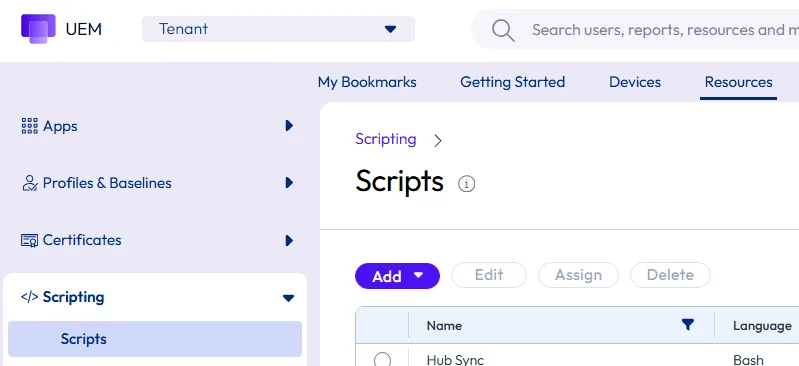
Navigate to:

Resources → Scripting → Scripts → Add

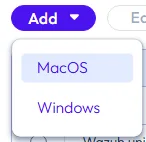
choose MacOS
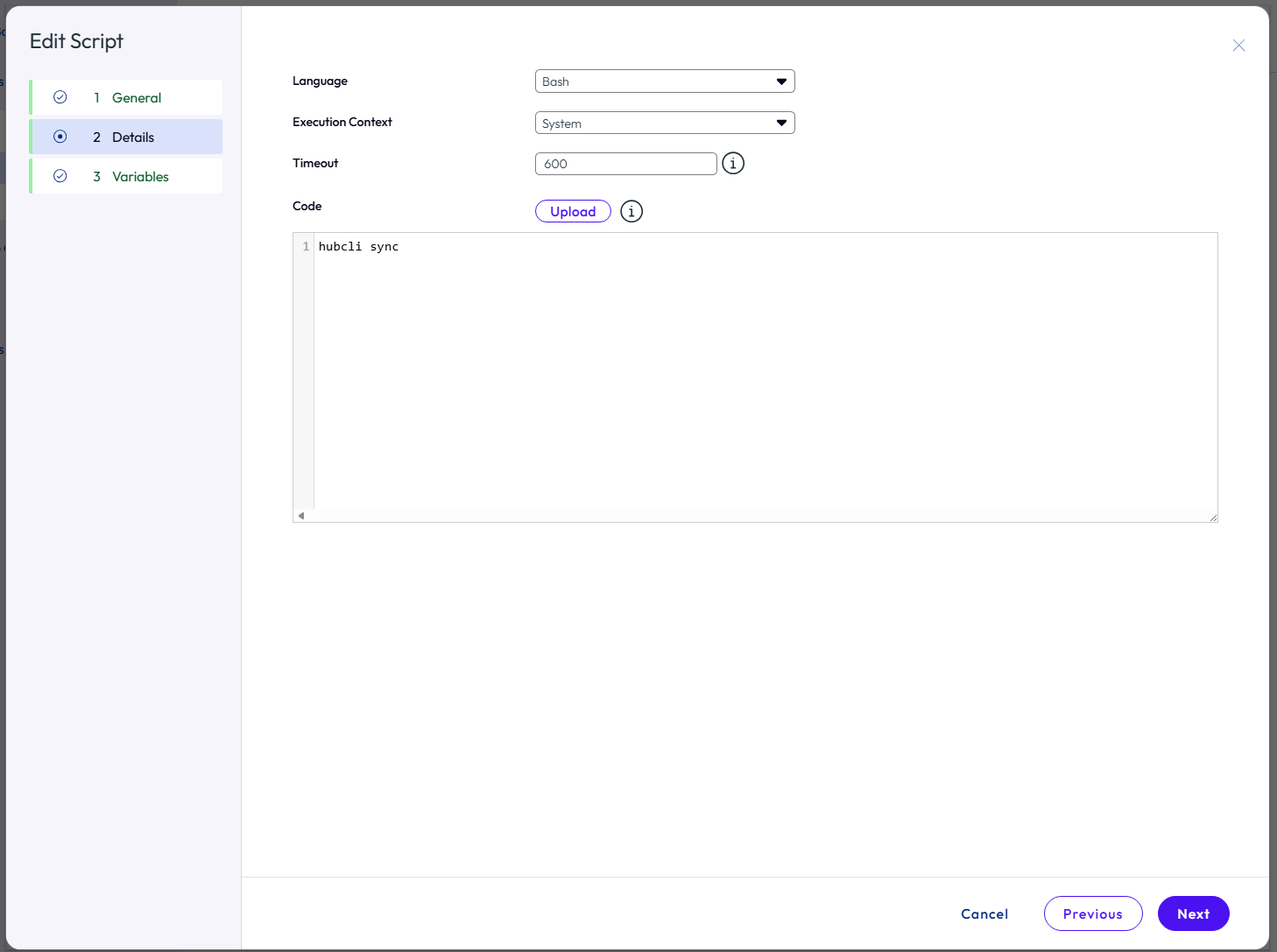
Configure the script with the following settings:

  • Name: Hub Sync
  • Language: Bash
  • Execution Context: System
  • Timeout: 600 seconds

Use the following code:

hubcli sync
Save the script and assign it to the relevant MacBooks. The script can then be executed automatically using the required assignment schedule or trigger.

Important

The command refreshes the information displayed by Intelligent Hub. It does not rename the local macOS account or its home directory.

If the old name remains visible, verify that the device is assigned to the correct directory user and that the updated user information has successfully synchronized with UEM and Access.

Next Steps

If you’ve read this far then chances are you are still having issues. Feel free to reach out to us. We’re happy to help out!

You might also like