VCSA IP Change
Have you ever thought about moving your ESXi servers into a different network segment? Reconnecting a host after an IP change can take up to 30 minutes. It does not have to.

Have you ever thought about moving your ESXi servers into a different network segment? There are plenty of guides on the web, but while doing the work we noticed that reconnecting an ESXi host after an IP change can take up to 30 minutes. Let us work out how to speed that up.
The vCenter Server resolving the wrong name
The cause is often stale name resolution on the vCenter Server Appliance. There is a way to cut the reconnect time down considerably. Our example assumes this configuration:

The goal is to change the VLAN and the IP address while keeping the ESXi servers’ names, and to keep every virtual machine running without interruption. At the end we have to flush the DNS cache on the VCSA.
Procedure
- Disable vSphere HA on the cluster (as a precaution)
- Disconnect the first ESXi host in vCenter (the VMs keep running)
- Change the IP and VLAN on the ESXi host console
- Adjust the host’s DNS record in the forward and reverse lookup zones
- Connect to vCenter over SSH and run the tests in the next section
- Reconnect the ESXi host in vCenter
- Repeat steps 2 to 6 for the remaining ESXi hosts
- Enable vSphere HA on the cluster again
Tests on the vCenter Server
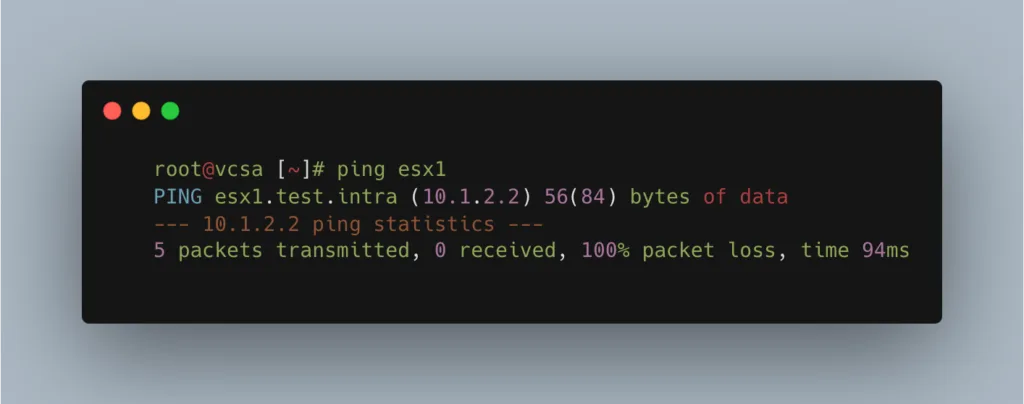
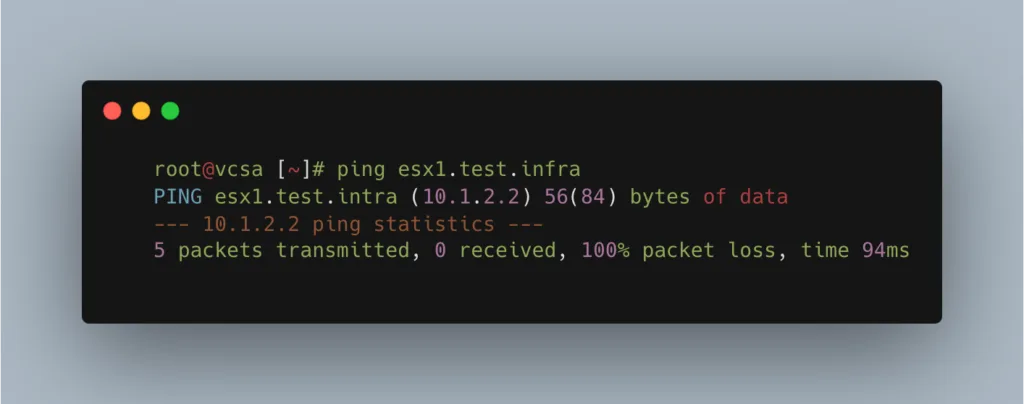
Ping the ESXi host by short name:
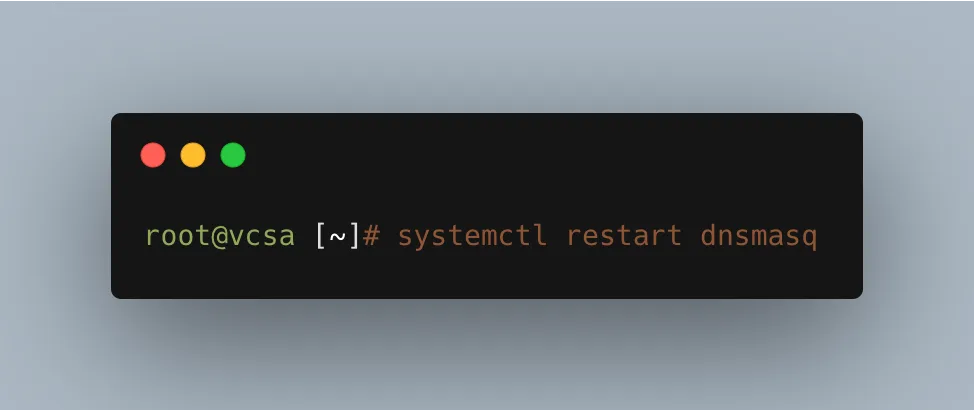
systemctl restart dnsmasq
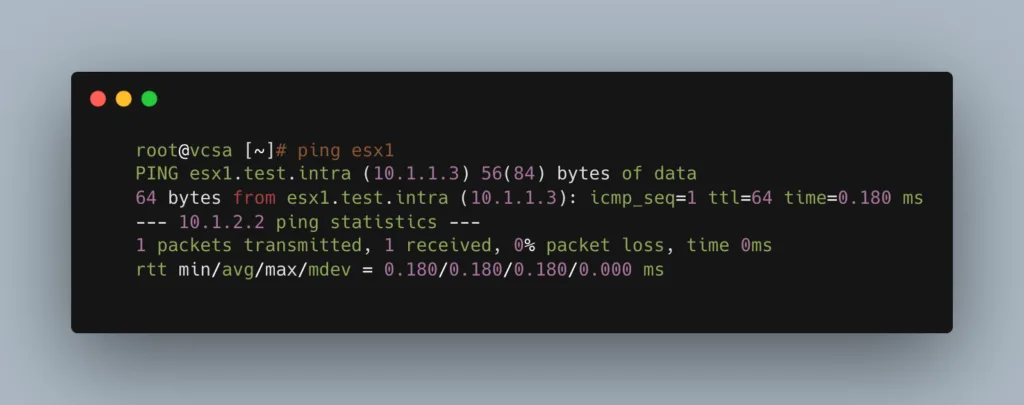
The short name ping works again.
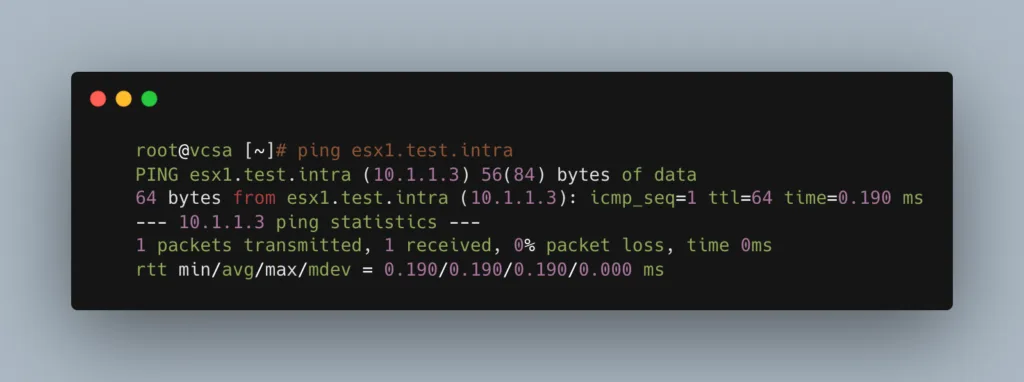
The FQDN ping does not.
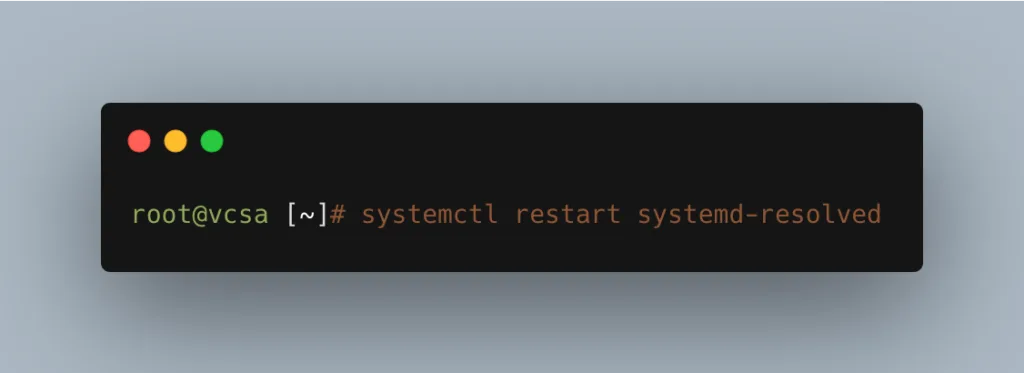
systemctl restart systemd-resolved fixes that too.
FQDN ping succeeds:
Solution
Two services have to be restarted on vCenter so that name resolution drops its cache and picks up DNS changes quickly:
- systemctl restart dnsmasq
- systemctl restart systemd-resolved
That is how you flush the DNS cache on your VCSA.