Securing the Horizon connection – part 1
Recent Horizon releases tighten the connections between agents and connection servers. Several of those settings are driven by the locked.properties file.


Recent Horizon releases tighten the connections between agents and connection servers. More and more security mechanisms are enabled that used to be off by default. Several of them are driven by the “locked.properties” file.
Here is how to configure that file correctly.
What happens if you do not configure it?
Missing or incorrect configuration can cause these problems:
- An empty error window appears when accessing the web interface of Horizon View 7.x or 8.x Administrator.
- The problem does not occur when the management page is reached over https://localhost, directly on the connection server.
- The administrator sees a “Login Failed” error when signing in through the console.
- Access to virtual desktops over HTML5 does not work.
- Logging in from outside does not work, or produces “421 Unknown – The page you requested is not available”.
Configuring locked.properties correctly
When a user connects to a Horizon Connection Server, that server has to know which URL the user is coming from. CORS (Cross-Origin Resource Sharing) handles this. So if a user clicks something on “badguy.com” and is redirected to Horizon from there, Horizon rejects the connection.
In practice this security feature is often turned off, even though it is very useful. We hope this post helps it get used properly instead.
To secure the Horizon connection, set these values in locked.properties:
balancedHost = <LoadBalanced URL>
portalHost.1 = <FQDN Horizon Connection Server 1>
portalHost.2 = <FQDN Horizon Connection Server 2>
The file lives at “C:\Program Files\VMware\VMware View\Server\sslgateway\conf\locked.properties”. Create it if it does not exist, and do this on every connection server.
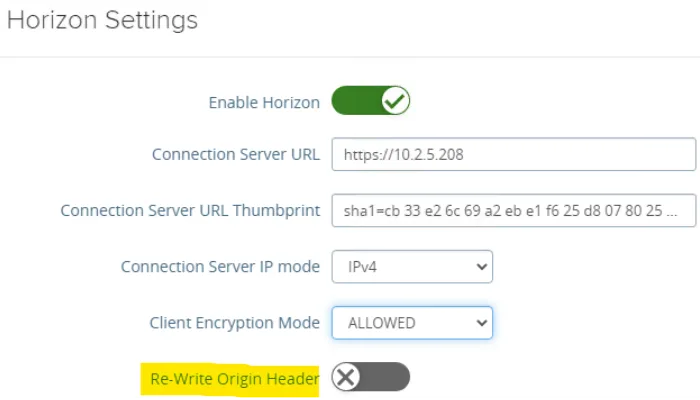
If the external load balancer URL differs from the internal one, enable “Re-Write Origin Header” on the UAG as well. That way the check-origin feature can stay enabled on the connection servers.
Next steps
If this interests you and you want to know more about security features in desktop virtualisation, do not hesitate to get in touch.