Enroll Windows Server 2025 in Omnissa Workspace ONE UEM
Windows Server is managed through Workspace ONE Intelligent Hub and does not use the standard Windows OMA-DM management channel.
Windows Server is managed through Workspace ONE Intelligent Hub and does not use the standard Windows OMA-DM management channel.
Before starting, confirm that the Workspace ONE UEM tenant includes the required Windows Server Management or Server Essentials entitlement.
Configure Workspace ONE UEM
Create a dedicated child Organization Group for Windows Servers:
Groups & Settings > Groups > OG Details > Add Child Organization Group
Example:
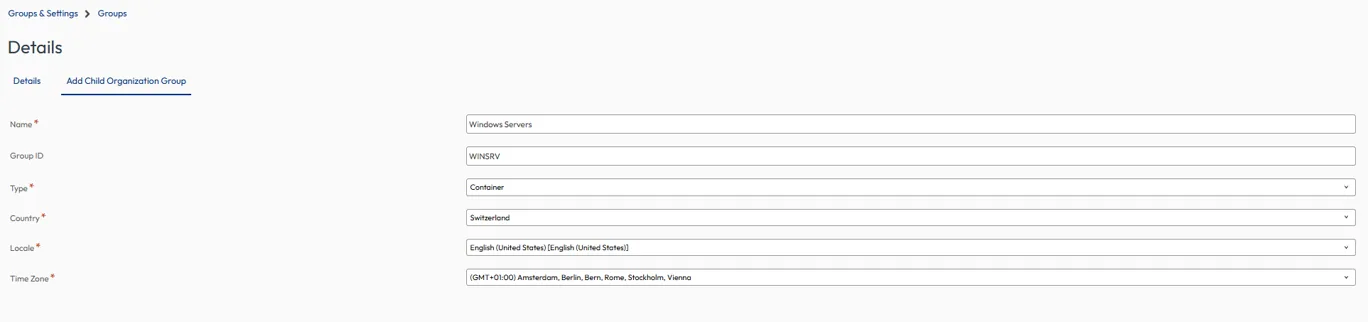
Use the exact Group ID later for the LGNAME installation parameter: LGNAME=WINSRV
Select the new Windows Servers Organization Group from the Organization Group selector at the top of the console before configuring the following settings.
Add a dedicated directory enrollment account:
Accounts > Users > Add > Add User
Example:
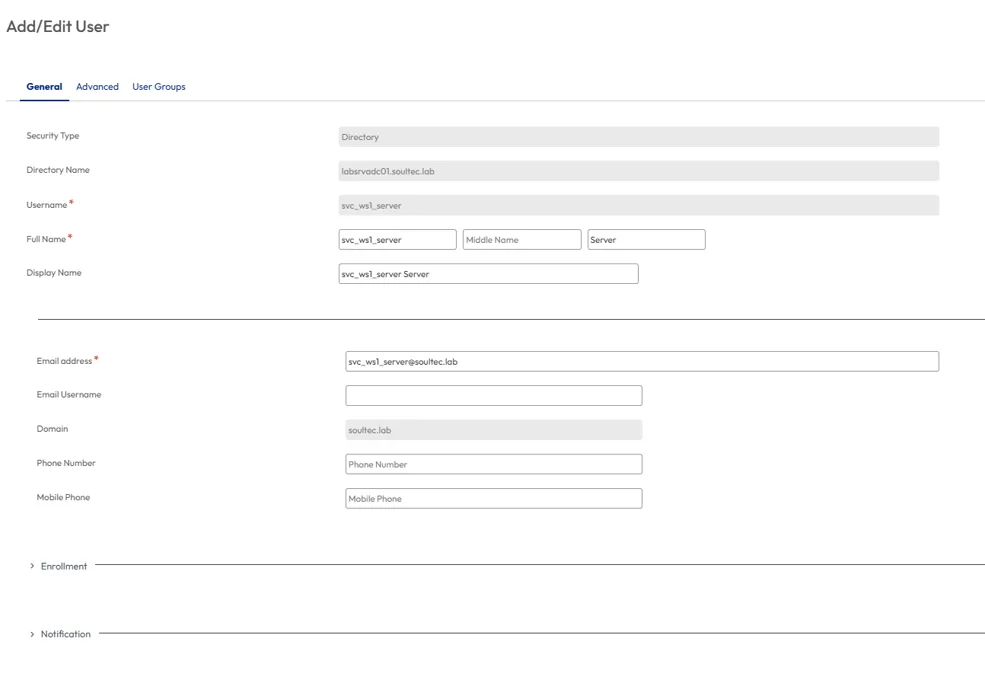
Confirm that the account:
• Is synchronized from Active Directory
• Is active
• Belongs to the Windows Servers Organization Group
• Is allowed to enroll devices
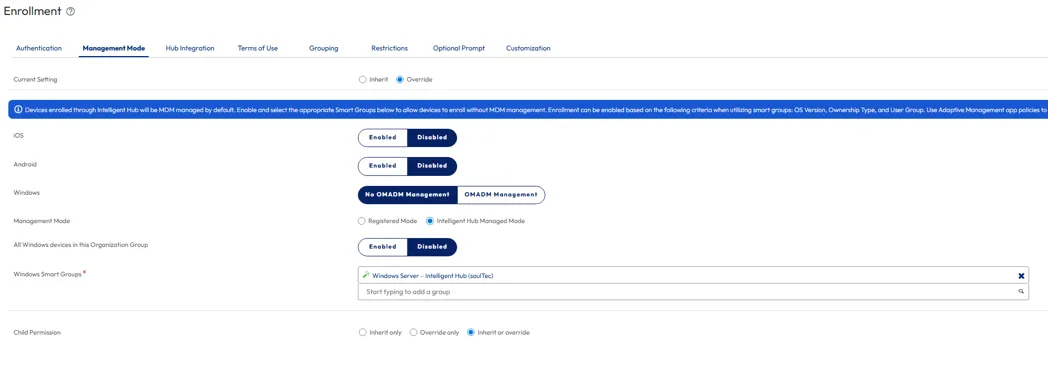
Configure the Windows Server management mode:
Groups & Settings > All Settings > Devices & Users > General > Enrollment > Management Mode
Select:
• No OMA-DM Management
• Intelligent Hub Managed Mode
• All Windows devices in this Organization Group: Enabled
Enable the last option only when the Organization Group contains Windows Servers exclusively. Otherwise, assign a Windows Server Smart Group.
Configure a fixed Organization Group:
Groups & Settings > All Settings > Devices & Users > General > Shared Device > Grouping
Select:
• Group Assignment Mode: Fixed Organization Group
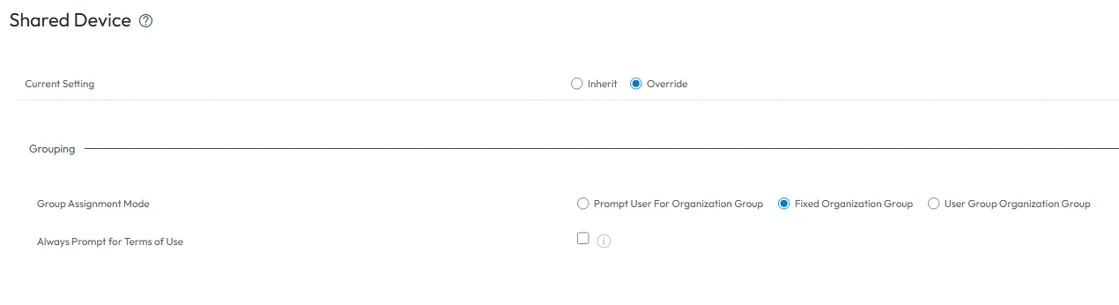
This ensures that the server is enrolled directly into the currently selected Windows Servers Organization Group.
Test Connectivity
Run the following commands from an elevated PowerShell window:
$DeviceServices = "ds1234.awmdm.com"
Resolve-DnsName $DeviceServices
Test-NetConnection -ComputerName $DeviceServices -Port 443
The result should show:
TcpTestSucceeded : True
Install Intelligent Hub
Replace the Device Services address, Group ID, and enrollment username with the values from your environment.
$ErrorActionPreference = "Stop"
$HubUrl = "https://packages.omnissa.com/wsone/AirwatchAgent.msi"
$MsiPath = "C:\Windows\Temp\AirwatchAgent.msi"
$LogPath = "C:\Windows\Temp\WorkspaceONE_Hub_Enrollment.log"
$Server = "ds1234.awmdm.com"
$GroupId = "WINSRV"
$Username = "svc_ws1_server@company.example"
Invoke-WebRequest -Uri $HubUrl -OutFile $MsiPath
if (-not (Test-Path -LiteralPath $MsiPath)) {
throw "Intelligent Hub MSI was not downloaded."
}
$SecurePassword = Read-Host "Enter the password for $Username" -AsSecureString
$PasswordPointer = [Runtime.InteropServices.Marshal]::SecureStringToBSTR($SecurePassword)
try {
$Password = [Runtime.InteropServices.Marshal]::PtrToStringBSTR($PasswordPointer)
$MsiArguments = @(
"/i `"$MsiPath`""
"/qn"
"/norestart"
"/L*v `"$LogPath`""
"ENROLL=Y"
"SERVER=$Server"
"LGNAME=$GroupId"
"USERNAME=$Username"
"PASSWORD=`"$Password`""
"DEVICEOWNERSHIPTYPE=CD"
"ASSIGNTOLOGGEDINUSER=N"
) -join " "

$Process = Start-Process `
-FilePath "msiexec.exe" `
-ArgumentList $MsiArguments `
-Wait `
-PassThru

Write-Host "MSI exit code: $($Process.ExitCode)"
Write-Host "MSI log: $LogPath"
}
finally {
if ($PasswordPointer -ne [IntPtr]::Zero) {
[Runtime.InteropServices.Marshal]::ZeroFreeBSTR($PasswordPointer)
}
Remove-Variable Password -ErrorAction SilentlyContinue
Remove-Variable SecurePassword -ErrorAction SilentlyContinue
}
The following parameters define where and how the Windows Server is enrolled:
• SERVER: The Workspace ONE UEM Device Services address.
• LGNAME: The Group ID of the target Organization Group.
• USERNAME: The dedicated account used to enroll the server.
• DEVICEOWNERSHIPTYPE=CD: Registers the server as a corporate-dedicated device.
• ASSIGNTOLOGGEDINUSER=N: Prevents the server from being assigned to the currently signed-in administrator and keeps it assigned to the enrollment account.
For production deployments, protect the enrollment password with a secure deployment or secret-management solution.
Verify the Enrollment
Check whether the Hub services are running:
Get-Service -ErrorAction SilentlyContinue |
Where-Object {
$_.Name -match "Airwatch|Workspace" -or
$_.DisplayName -match "Airwatch|Workspace ONE"
} |
Format-Table Name, DisplayName, Status -AutoSize
Expected services include:
• AirwatchService
• Workspace ONE Hub Health Monitoring Service
Review the latest enrollment log:
$LogFolder = "C:\ProgramData\AirWatch\UnifiedAgent\Logs"
$EnrollmentLog = Get-ChildItem -Path $LogFolder `
-Filter "DeviceEnrollment-*.log" `
-ErrorAction SilentlyContinue |
Sort-Object LastWriteTime -Descending |
Select-Object -First 1
if ($EnrollmentLog) {
Get-Content -Path $EnrollmentLog.FullName -Tail 100
}
else {
Write-Host "No DeviceEnrollment log was found."
}
In the UEM console, open:
Devices > List View
Search for the server hostname or enrollment username.
The enrollment is successful when the server appears in UEM, Intelligent Hub remains installed, and the device shows a recent check-in.
Troubleshooting
Error 1011:
Invalid User Credentials
Check the username, password, directory synchronization, account status, and Organization Group assignment.
Error 2025:
ERR_Server_Enrollment_Not_Licensed
The tenant is missing the required Windows Server entitlement or backend feature. Reinstalling Intelligent Hub will not resolve this error.
Hub installs and then disappears:
Check the DeviceEnrollment log. Intelligent Hub may automatically uninstall itself when Windows Server enrollment is not licensed.
No Accounts key exists. Not a DM enrollment flow:
This is expected because Windows Server uses Intelligent Hub Managed Mode instead of OMA-DM.
Next Steps
If you’ve read this far then chances are you are still having issues. Feel free to reach out to us. We’re happy to help out!